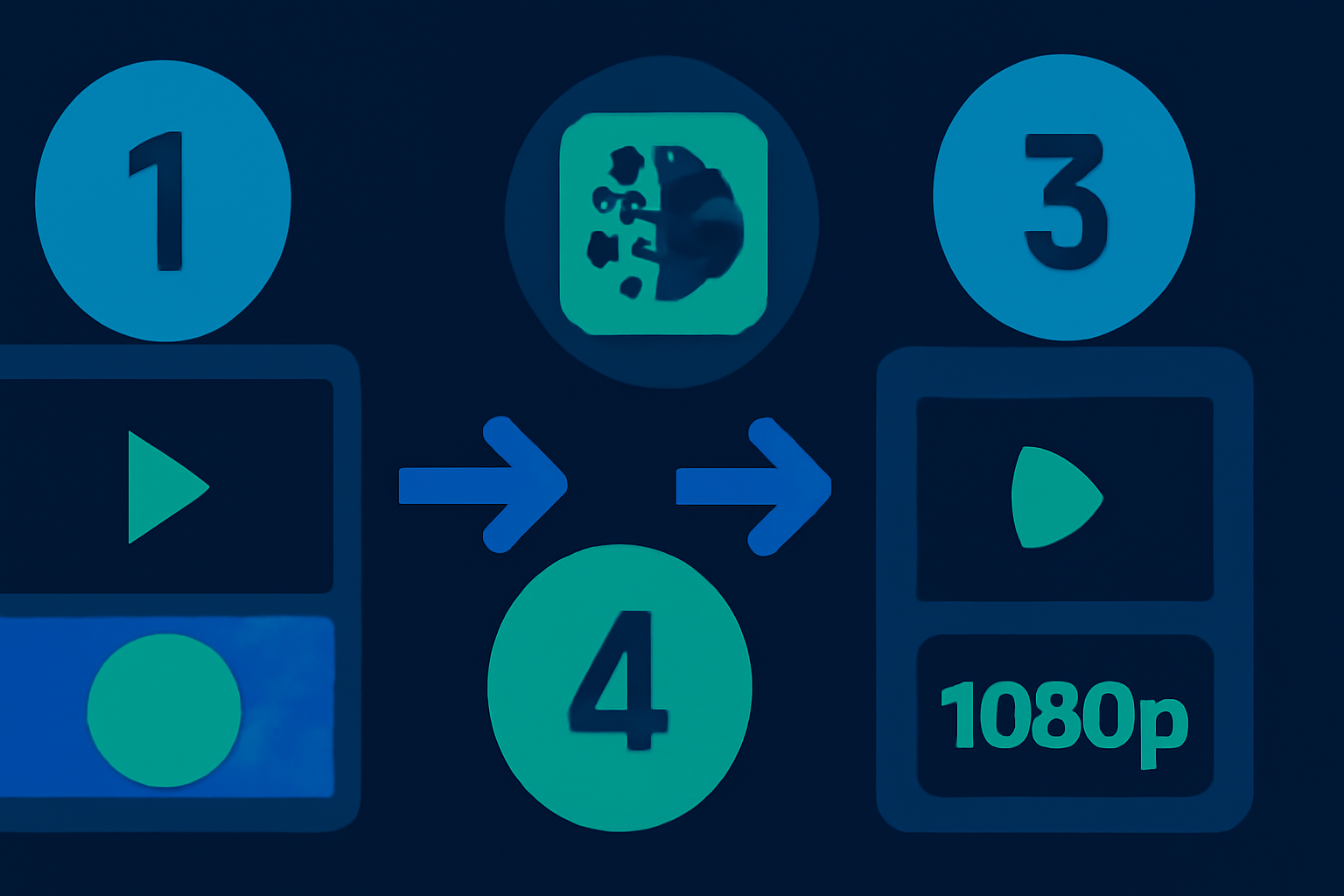
Quick Verdict: Transforming your blurry 720p video into a crisp 1080p resolution has become remarkably accessible in 2026, thanks to free AI-powered tools like Topaz Video AI Free Edition, Runway ML, and Pixop Basic. In this guide, we walk you through the process of enhancing your low-resolution videos for professional or personal use, all without spending a single dollar.
⏱ 11 min read
—Key Takeaways:
- AI-powered upscaling tools can enhance the resolution of 720p videos to 1080p with notably improved clarity.
- Most tools rely on cloud processing, so having a strong, reliable internet connection is vital.
- Topaz Free is known for its simplicity, while Runway ML offers expanded customization options.
- The quality of your upscaled video will largely depend on the original source material.
—
What You’ll Need to Get Started
Before starting, ensure you have these essential items prepared to achieve the best results using free AI video upscaling tools:
1. Stable Internet Connection: Many free AI tools process videos in the cloud, requiring dependable upload and download speeds for smooth workflows. 2. Computer or Laptop: While the processing is often cloud-based, you will need a device with adequate storage for uploading, downloading, and previewing files. 3. A 720p Video File: Videos captured using smartphones, webcams, or older cameras can be enhanced, though high-quality original footage yields the best results. 4. Supported AI Tools: – Topaz Video AI Free Edition – Runway ML Free Plan – Pixop Basic Tier 5. Basic File Format Knowledge: Most AI upscaling tools primarily support formats like MP4, MOV, and AVI. Verify your video file aligns with these common standards.
Key fact (as of April 2026): Free versions of tools like Runway ML and Pixop allow users to process up to 15 minutes of HD video each month.
—
Quick Overview: What We’ll Accomplish
This guide outlines how to upgrade your blurry 720p videos into sharper, professional-looking 1080p content:
- Step 1: Identify and select the AI tool best suited to your needs—ease-of-use, speed, or advanced customizations.
- Step 2: Upload your 720p video to the selected platform for processing.
- Step 3: Configure the upscaling settings, including features such as resolution, noise reduction, and sharpness adjustments.
- Step 4: Allow the AI tool to analyze and upscale your video to 1080p resolution.
- Step 5: Preview the completed video alongside the original to ensure quality meets expectations.
- Step 6: Download and save the upscaled video in your preferred file format.
By following these steps, you’ll transform your video into a polished 1080p version—ideal for social media uploads, promotional content, or repurposing cherished memories.
Key fact (as of April 2026): Processing a 5-minute 720p clip into 1080p resolution typically takes between 8 to 13 minutes, depending on the platform used.
—
Step-by-Step Instructions for Upscaling Videos
Step 1: Choose the Right AI Tool
- For simplicity, Topaz Video AI Free Edition is a great choice.
- For greater control over settings like noise reduction and sharpening, consider Runway ML.
- If you’re working with larger, more complex files, Pixop provides a reliable alternative but may take longer to process.
Step 2: Upload Your 720p Video
Log into the platform of your chosen tool and upload your video file. Ensure the file type is supported (MP4 is widely compatible).Step 3: Adjust Upscaling Settings
Configure the tool for your desired resolution, selecting 1080p as the target. Experiment with additional enhancements like noise reduction and detail restoration if available.Step 4: Let AI Process the Video
Begin the upscaling task. Allow the tool to perform its analysis and enhancements—this may take a few minutes based on factors like the video length and cloud performance.Step 5: Preview Results
Before finalizing, use the preview option offered by most tools. Check for anomalies such as uneven sharpening, artifacts, or glitches.Step 6: Download the Enhanced Video
After reviewing and confirming the improved quality, download your final 1080p video, saving it in a format like MP4 for broader compatibility.Key fact (as of April 2026): Free AI upscaling tools may restrict processing duration to under 15 minutes per video, depending on the platform.
—
Common Mistakes to Avoid During Video Upscaling
1. Uploading Extremely Poor-Quality Sources: Upscaling cannot magically fix heavily pixelated or distorted videos. 2. Ignoring File Format Requirements: Video files should be in standard formats like MP4, MOV, or AVI for optimal compatibility. 3. Overusing Enhancements: Excessive sharpening or detail boosting may create undesirable, unnatural visuals. 4. Skipping the Preview: It’s important to catch potential playback or quality issues during review before downloading. 5. Underestimating Network Speed: Slow internet connections can significantly delay uploads, cloud processing, and downloads.
Key fact (as of April 2026): Free-tier processing on tools such as Pixop may struggle with uncompressed video files exceeding 5GB in size.
—
Pro Tips & Shortcuts for Faster Results
1. Process Multiple Videos at Once: Platforms supporting batch processing can dramatically save time for users dealing with several files. 2. Leverage Presets: Tools with preconfigured settings for specific resolutions (like 720p to 1080p) simplify the enhancement process. 3. Opt for Cloud Processing: For efficiency, cloud-based solutions like Runway ML often outperform desktop alternatives. 4. Compare Different Tools: Each tool has unique algorithms—what works for Runway ML might not deliver identical results on Topaz Free. 5. Pre-Upscale Refinements: Use basic noise correction or editing tools before upscaling for improved results.
Key fact (as of April 2026): Batch processing can reduce overall processing time by up to 50%, which is especially useful for content creators managing multiple videos.
—
Troubleshooting: Fixing Common Problems
- Processing Is Too Slow: Verify your internet connection or reduce the target resolution temporarily (e.g., upscale to 900p first).
- Image Appears Oversharpened: Adjust the sharpening or detail enhancement settings.
- The Tool Crashes Midway: Free up system memory or close unnecessary applications to improve performance.
- Output File Won’t Play: Use a video converter like FFMPEG to reformat the downloaded file.
Key fact (as of April 2026): Tools like FFMPEG remain popular for fixing compatibility issues in processed video files.
—
Real-World Examples of AI Video Upscaling Success
1. Marketers: Campaign footage upgraded for sharper web playback and greater audience engagement. 2. YouTubers: Creators restoring old 720p videos to polished 1080p for monetized content libraries. 3. Video Restoration Specialists: Teams preparing historical footage or music videos for modern HD reissues. 4. Educators: Training materials reprocessed for better clarity in online and corporate presentations.
Key fact (as of April 2026): Marketing professionals report engagement rates increasing by up to 20% with enhanced HD ad footage.
—
Leave a Reply