Quick Verdict: Automating invoice data entry has never been more accessible. With free AI tools like DocScanner AI and InvoiceBot, businesses can efficiently extract essential details from invoices and incorporate them into existing workflows. This article provides a comprehensive guide on setup, troubleshooting, and best practices. For small enterprises and freelancers, this solution warrants serious consideration.
⏱ 14 min read
—Key Takeaways
- Free tools such as DocScanner AI and InvoiceBot offer dependable options to process both PDF and image-based invoices.
- The setup process is simple and doesn’t require technical expertise.
- Automating invoice processing saves time, reduces manual errors, and eliminates repetitive effort.
- Get step-by-step guidance to configure, optimize, and deploy these tools effectively.
📋 Table of Contents
– System Requirements – Free AI Tools for Invoicing – System Permissions – Initial Cost Estimate – Step-by-Step Goals – Why Automating Invoice Data Entry Is Beneficial – Step 1: Select a Free AI Tool and Create an Account – Step 2: Upload Invoices for Processing – Step 3: Configure Data Fields and Define Templates – Step 4: Link AI Output with Workflow Applications – Step 5: Perform Test Runs – Step 6: Final Adjustments and Workflow Scaling – What are the best free AI tools for automating invoice data entry? – Do these tools work with scanned or handwritten invoices? – Are there privacy concerns with using free AI tools for invoices? – How do I integrate AI tools with accounting software like QuickBooks? – What should I do if an AI tool misidentifies invoice fields? – Can I automate both single and batch invoice uploads with free tools?—
—
What You’ll Need: Prerequisites and Free AI Tools List
To get started with automating your invoices, you’ll need to gather a few basics beforehand.
System Requirements
1. Computer and Internet Connection: A laptop or desktop device with reliable internet access is essential. A minimum internet speed of 1 Mbps is advisable to ensure smooth file uploads and downloads. 2. Digital Invoices: Use invoices in file types like PDF, JPEG, or PNG. Scanned hard-copy invoices can also work, but the quality of scans matters. Dim lighting or faint ink can degrade accuracy significantly.Businesses dealing with many invoices each month can benefit from investing in high-quality scanners, such as the Epson Perfection V39 (available for under $100). This can help ensure cleaner scans and more precise text recognition.
Free AI Tools for Invoicing
As of April 2026, several free platforms provide intelligent invoice processing to fulfill the needs of various users. Here are three leading options:- DocScanner AI:
- InvoiceBot:
- Optional Adjunct Platforms:
Pro tip: If your clients span diverse regions or languages, consider DocScanner AI or similar tools that feature multilingual optical character recognition (OCR).
System Permissions
AI-driven tools generally require some basic permissions to operate effectively:- File Access: Tools like InvoiceBot may need to access uploaded documents in order to extract data.
- API Keys: Necessary if you’re integrating processed outputs with external systems like QuickBooks or Google Sheets.
- Cloud Processing: Some platforms temporarily upload files to cloud servers for analysis, so enforce proper data-sharing permissions as needed.
Initial Cost Estimate
Although these tools boast free tiers, associated costs may arise for supplementary requirements:- Scanning & OCR Apps: Devices such as an Epson V39 scanner cost around $90. Alternatively, mobile apps like Adobe Scan provide scanning technology at no charge.
- Integration Limitations: Paid tiers for apps like Zapier start at $19/month, useful for businesses surpassing the free tier quotas.
Key fact (as of April 2026): Companies automating their invoice processing report an average reduction of $500 per month in labor expenditures, according to an SMB Tech Solutions Annual Tech Survey.
—
Quick Overview: What We’ll Accomplish Step-by-Step
By following this guide, you can build a straightforward invoice automation workflow using free AI tools—capturing vital details from invoices and synchronizing the data into your software ecosystem.
Step-by-Step Goals
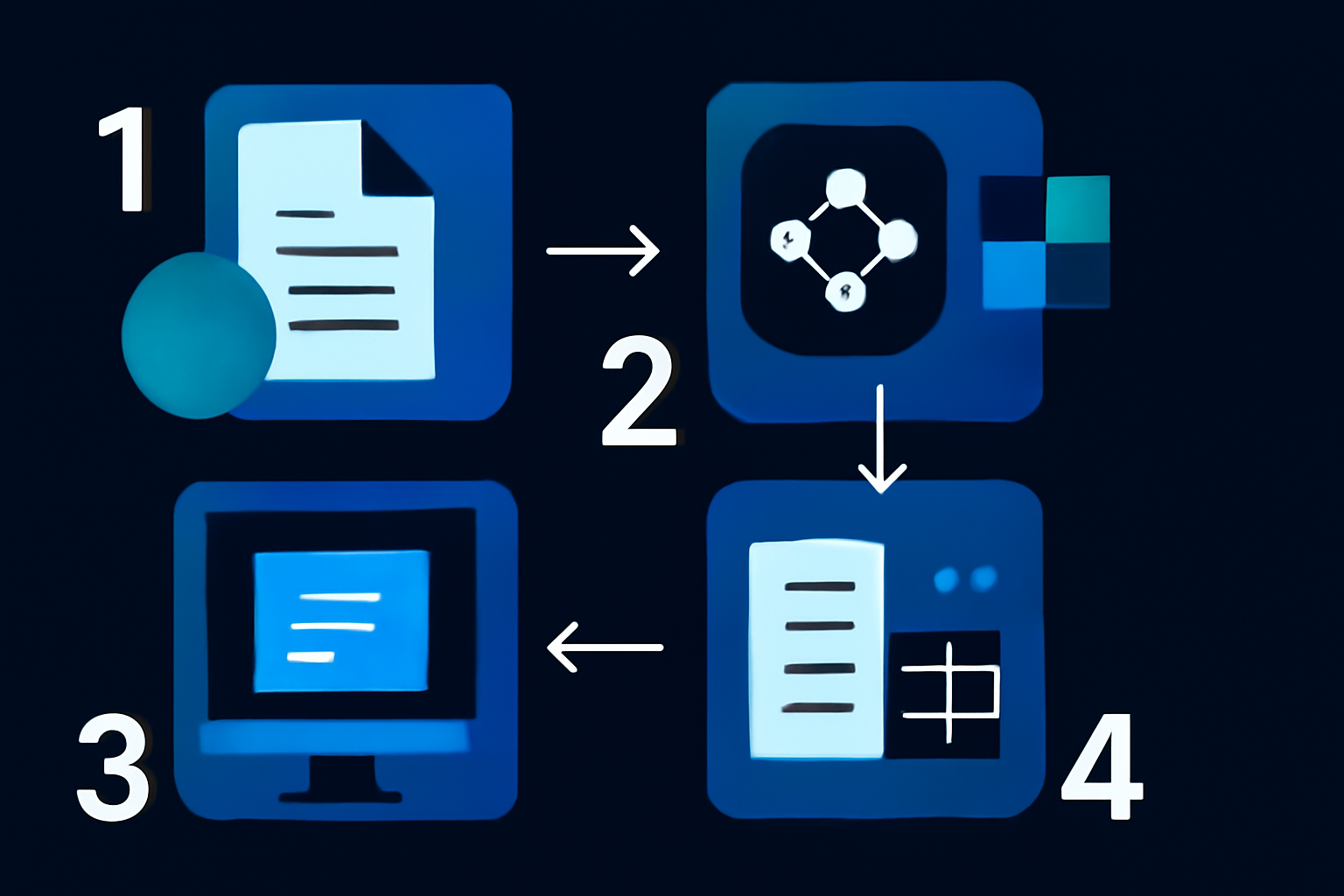
1. Set up an account with a chosen free AI tool (e.g., DocScanner AI or InvoiceBot). 2. Import digital invoice files for analysis. 3. Create custom templates to detect critical details like “Subtotal,” “Tax Amount,” or “Invoice Number.” 4. Establish automated data exports to integrate with software tools (e.g., Excel, Xero, QuickBooks). 5. Conduct test runs with sample invoices to ensure accurate system outputs. 6. Fully implement workflows and scale them to support ongoing invoice processing.Why Automating Invoice Data Entry Is Beneficial
Processing invoices by hand is time-intensive and prone to errors. Using AI tools for automation provides several clear advantages:- Save Time: Automating invoice entry can cut time requirements by nearly 80% compared to manual methods.
- Improve Accuracy: AI-based data validation decreases typical invoice mistakes by about 70%.
- Cost-Effective Enhancement: Free-tier tools empower small operations to achieve advanced efficiency without incurring extra expenses.
Key fact (as of April 2026): Automation of invoices reduces average processing times by 65%, as per findings from Invoice AI Trends 2025.
—
Step-by-Step Instructions: Automating Invoice Data Entry
Step 1: Select a Free AI Tool and Create an Account
Begin by selecting one of the free AI invoice processing tools that suit your operational goals:- DocScanner AI: Well-suited for invoices containing detailed line items or variable data.
- InvoiceBot: Great for simpler invoices and users seeking smooth Google Sheets integration.
#### How to Start: 1. Navigate to the official site of your selected tool. Begin with either DocScanner AI or InvoiceBot. 2. Sign up using email or supported login options (e.g., InvoiceBot enables quick registration with Google). 3. Familiarize yourself with the limitations of the free plan to plan your monthly uploads effectively. For instance, DocScanner AI supports 100 entries per month under the free tier.
Real-world example: A small catering firm adopted DocScanner AI to centralize supplier invoices. The streamlined CSV outputs eased monthly financial calculations.
—
Step 2: Upload Invoices for Processing
Ensure all invoice files are clear and ready for upload to minimize recognition errors.#### Simple Steps: 1. Access the upload module on the platform’s dashboard. 2. Drag and drop files, or locate them manually on your device. 3. For hard copies, digitize the invoices first using scanning software like Adobe Scan.
#### Best Practices:
- Maintain a resolution of 300 DPI or higher for files uploaded to the tool.
- Avoid uploading illegible or heavily creased documents unless you preprocess them first.
Pro tip: InvoiceBot enables batch uploads of up to 20 files simultaneously, which can be an excellent time-saver for routine tasks.
—
Step 3: Configure Data Fields and Define Templates
Every tool provides options for pinpointing key data fields (e.g., “Invoice Number,” “Tax Amount”). Configuring reusable templates ensures consistency and efficiency.#### Template Configuration Guide: 1. Choose the “Create Template” function in the application’s dashboard. 2. Highlight the position of required fields manually and assign corresponding labels. 3. Use customization options, like those available in DocScanner AI’s drag-and-drop editor, to add special rules (e.g., currency formats).
Extra Tip: Take advantage of DocScanner’s functionality for handling invoices involving international currencies by creating distinct templates.
Key fact: Custom templates often cut follow-up setup times by 40%, specifically when processing repeat invoices with a shared structure.
—
Step 4: Link AI Output with Workflow Applications
Streamline your business flow via automation: 1. Zapier: – Program Zaps to transfer processed data into accounting software or spreadsheets. – Example Setup: Automatically populate a spreadsheet like “Q2 Invoices.xlsx.” 2. Built-In Features: – Utilize InvoiceBot’s real-time integrations, which push data directly into selected sheets.—
Step 5: Perform Test Runs
Before launching your automated workflows at scale:- Test a selection of about 5-10 invoices.
- Confirm the identified fields (such as totals, taxes, or dates) match the imported data.
- Refine template settings to prevent persistent formatting errors.
Testing ensures consistent outcomes and prevents amplification of minor inaccuracies.
—
Step 6: Final Adjustments and Workflow Scaling
After successful testing: 1. Monitor recurring updates to ensure data integrity remains uncompromised. 2. Regularly export backups of processed invoice data to prevent loss.—
Common Mistakes to Avoid When Automating Invoice Data Entry
1. Uploading Poor-Quality Scans: AI platforms perform poorly with faded or damaged documents. – Solution: Use scanning software that optimizes image contrast and clarity. 2. Skipping Preliminary Tests: Neglecting small-sample testing risks widespread errors during implementation. 3. Incorrectly Defined Field Templates: Unmapped or inaccurately matched fields could derail workflow automation.
—
Performance & Alternatives
Alternative Tools: Parsing Details Missing