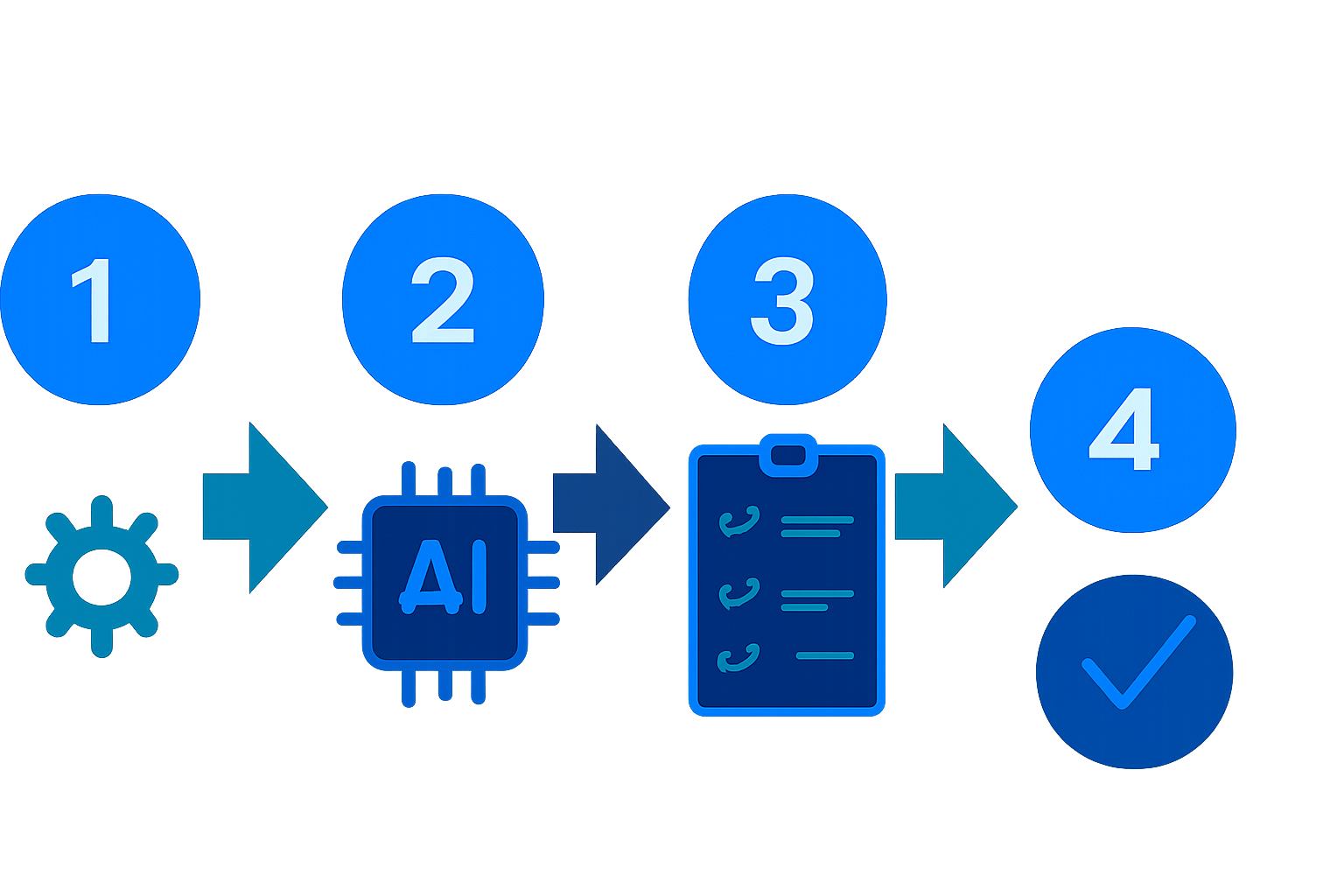
Quick Verdict: Save time and effort by automating repetitive tasks using free AI tools like Zapier, ChatGPT, and Canva. While their free plans have certain limitations, they are ideal for straightforward workflows that can be set up in minutes—perfect for solo entrepreneurs and small businesses.
⏱ 9 min read
Key Takeaways:- Free AI tools can help you streamline tasks such as auto-replying to emails, scheduling social media posts, and creating designs.
- Most of these tools are user-friendly and don’t require advanced technical knowledge.
- The free versions of widely-used platforms like Zapier or ChatGPT work well enough for basic applications.
- Testing the setup thoroughly is crucial to avoiding errors during implementation.
—
How to Use Free AI Tools for Task Automation in 5 Minutes
The thought of automation might feel intimidating, but with modern AI tools available without cost, anyone can eliminate common repetitive tasks. No coding is necessary, and in just a few minutes, you can establish workflows that save several hours a week.
For instance, if you’re constantly responding to similar queries in emails, tools like ChatGPT or Zapier allow you to automate those messages. With clear steps, you’ll have a system running hassle-free in no time.
1. Pinpoint your routine task: Identify one repetitive action (e.g., replying to customer emails or uploading daily posts). 2. Select an AI tool: For communication tasks, try ChatGPT; for connecting multiple apps, start with Zapier. 3. Sign up and log in: Free registrations are quick, and most tools provide immediate access. 4. Upload your content: Prepare templates, phrases, or any data required for automation (e.g., email drafts or design elements). 5. Set the conditions for automation: Define trigger events to automate processes (e.g., “Emails containing ‘help request’ will receive a pre-written reply”). 6. Test your workflow: Run a preliminary test to ensure all components are working as expected before deploying it fully.
Key fact (as of April 2026): An estimated 70% of routine tasks in small businesses can be automated using free AI tool plans, according to recent studies.
—
What You’ll Need
Before jumping into automation, make sure you have the essentials:
1. Stable Internet connection: This is non-negotiable since most of these tools operate online. 2. Free AI tools: Examples include Zapier Free Plan, ChatGPT, and Canva Free, which provide sufficient features for basic automation. 3. A list of repetitive tasks: Identify routine activities that consume time regularly, such as replying to common emails or uploading posts. 4. A suitable device: A desktop, laptop, or even a smartphone is enough to get started. 5. Willingness to experiment: Be prepared to tweak settings, as results might require adjustments to achieve accuracy.
Example Use Case: Imagine you’re a solopreneur often replying to questions about pricing—you can set up ChatGPT to generate pre-filled responses and even personalize the tone.
Key fact (as of April 2026): Canva Free provides access to more than 250,000 templates, making it invaluable for creating fast, polished designs at no cost.
—
Quick Overview: What You’ll Achieve
Here’s what these tools enable you to accomplish:
- Streamline repetitive tasks: Activities like scheduling posts, crafting email responses, or applying graphic designs become simplified.
- Learn basic automation setup: Even with no prior experience, you’ll configure workflows quickly and efficiently.
- Maximize productivity: Free yourself from time-consuming tasks and gain more opportunity for creative or strategic work.
- Build confidence with AI: Starting with simple automations prepares you for exploring more advanced capabilities over time.
Practical Example: Suppose a small business owner needs to resize multiple images for an ad campaign. Canva’s Magic Resize tool can handle this in minutes, avoiding hours of tedious manual resizing.
Key fact (as of April 2026): Studies show a 30% increase in productivity for small businesses that incorporate automation into their operations.
—
Step-by-Step Instructions
Here’s how you can automate your first task in just six steps:
1. Identify a repetitive task
Choose one activity that consumes a significant amount of your daily schedule, such as sending follow-up emails or posting on social media.Example: An e-commerce store owner could automate status updates sent to customers to save hours weekly.
Pro Tip: Start with tasks that are frequent and straightforward. By tackling these first, you’ll see immediate benefits from automation.
—
2. Choose an AI tool suitable for the job
Find and select the right tool for your specific task. Zapier can connect apps, ChatGPT can auto-draft emails, and Canva enables quick design automation.Tool Comparisons:
- Zapier Free Plan: Best for connecting apps and automating multi-step workflows.
- ChatGPT Free: Excellent for generating or editing text, like drafting email responses.
- Canva Free: Useful for automating visual tasks like resizing or creating social media graphics.
—
3. Register and familiarize yourself with the interface
Sign up for a free account on your preferred platform. Most services, like Zapier and ChatGPT, walk you through the process with onboarding tutorials.Example:
- Visit Zapier and sign up.
- Set up your first connection (called a “Zap”), such as linking Gmail to Google Sheets for task tracking.
—
4. Define your task and configure automation
Decide what the tool should do. For example, define a Zapier trigger to draft auto-replies or upload an email template to ChatGPT for generating responses.Canva Example: If creating an Instagram post, choose from pre-built templates. With the Brand Kit tool, colors and logos can be added smooth—even in the free version.
—
5. Run a test for quality control
Test your setup thoroughly using sample data. This step reveals any potential issues before the workflow goes live.Pro Tip: Use placeholder data during testing. This makes spotting any automation errors easier without risking live data inputs.
Key fact (as of April 2026): Canva supports simultaneous resizing across 10 popular dimensions, saving hours on graphic editing.
—
6. Monitor and adjust as needed
Once your workflow is live, check its outputs frequently. Most tools let you modify settings mid-automation to improve precision.—
Advanced Techniques to Enhance Your Automation
Once you’ve mastered the basics, here’s how you can improve your system:
Conditional Automation
In Zapier, you can set conditional rules. For example:- Emails marked as “urgent” can trigger a Slack notification.
- Inquiries containing specific keywords are automatically organized into folders.
Refine Prompt Usage
With ChatGPT, refine input prompts by specifying tone, length, or style—for instance, “Respond with a professional tone, no longer than three sentences.”Multi-Platform Workflows
Combine tools to create end-to-end processes. For example:- Use Zapier to pull data from emails and feed that data into a design created on Canva.
—
Common Mistakes to Avoid
- Skipping Tests: Ensure that you test thoroughly. Incorrect configurations may lead to unintended outputs, like replying to the wrong emails.
- Ignoring Free Plan Restrictions: Each tool has usage limits. For example, Zapier free accounts allow only a limited number of monthly tasks. Check these caps to avoid disruptions.
—
Real-Life Use Cases
Freelancers
Streamline email responses with ChatGPT templates, connected via Zapier for outreach campaigns.Social Media Managers
Batch-create images in Canva Free, then schedule posts automatically with integration tools like Buffer or Hootsuite.Key fact (as of April 2026): Canva automation tools reduce graphic editing time by as much as six hours per campaign for professional designers.
—
Alternatives to Try
Not every tool fits your workflow. Consider these alternatives:
| Feature | Zapier Free | Automate.io Free | Make.com Free | |—————————— |—————– |———————- |—————————-| | App Integrations | ✅ 5 apps | ✅ 250 integrations | ✅ Extensive mapping tools | | Monthly Task Limit | ✅ 100 tasks | ✅ 300 tasks | ✅ Configurable plans | | Best Use Case | Simple triggers | Workflow testing | Advanced, technical users |
When to Choose Alternatives?
- Use Automate.io Free for increased task limits without upgrading.
- Use Make.com Free if you need advanced or visually intuitive workflow mapping.
—