⏱ 13 min read
📋 Table of Contents- What You’ll Need to Get Started
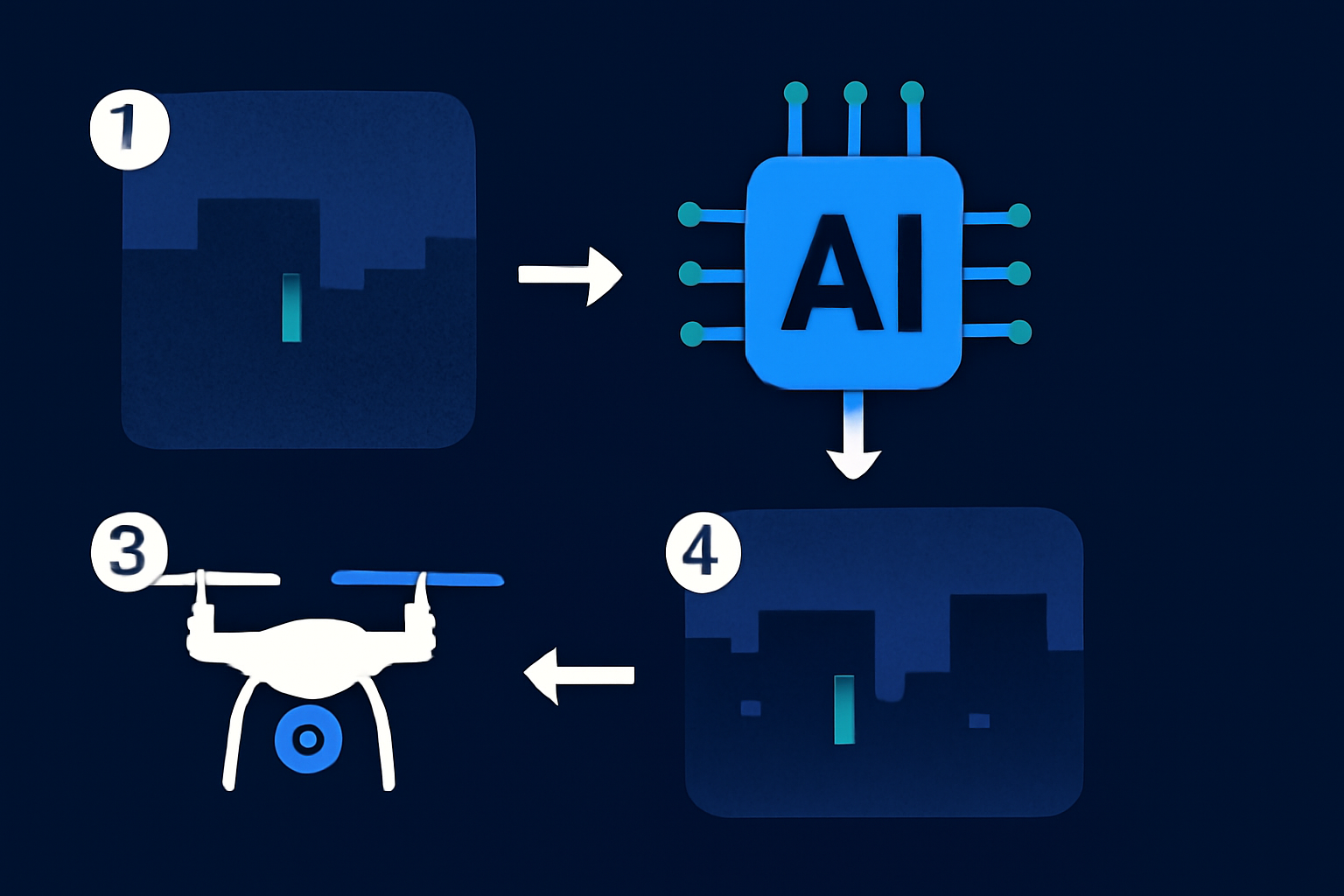
- Quick Overview: What This Process Will Accomplish
- Step-by-Step: How to Upscale Grainy Drone Footage in Low Light
- Common Mistakes to Avoid
- Pro Tips & Shortcuts for Better Results
- Troubleshooting: Common Issues and Solutions
- Real-World Examples of AI Upscaling Drone Footage
—
Quick Verdict: Yes, premium AI tools such as Topaz Video AI and Adobe Premiere Pro with AI enhancements can vastly improve grainy, low-light drone videos. These programs utilize sophisticated algorithms to reduce noise, enhance brightness, and increase resolution, making them highly valuable for creators. However, potential downsides include lengthy processing times for high-resolution files and a learning curve for first-time users of advanced software.
Key Takeaways:
- AI can provide significant improvements to low-light footage, but the outcome often depends on the input quality.
- Advanced options like Topaz Video AI excel compared to free alternatives in detail and refinement.
- You’ll need a powerful computer to handle resource-intensive processing efficiently.
- Excessive use of AI filters can lead to unnatural-looking videos, so subtle adjustments work best.
—
What You’ll Need to Get Started
Before you begin enhancing your drone footage, having the right tools, hardware, and preparation can save time and improve results. Here’s a checklist:
- AI Programs for Video Enhancement: Solutions like Topaz Video AI, Adobe Premiere Pro (with AI presets), and free contenders such as HitPaw Video Enhancer offer features for reducing grain and boosting resolution.
- A Capable Computer Setup: AI processing requires robust hardware. Aim for at least an 8-core processor, 16GB (ideally 32GB) of RAM, and a GPU with a minimum of 6GB VRAM to handle demanding tasks smoothly.
- High-Quality Drone Files: Work with raw or high-resolution video files, ideally in widely accepted formats like MP4 or MOV. The better the original quality, the better the results.
- Ample Storage Space: Enhanced files can be several times larger than the original. For instance, a 5-minute, 4K-processed clip may increase in size from 1GB to over 6GB.
- Free Trials: Many professional AI tools offer trial periods—these can help familiarize you with their functionality before making a financial commitment.
Ensure you’re well-equipped to avoid interruptions mid-process and achieve optimal results.
Key fact (as of April 2026): Topaz Video AI is currently priced at $299 for lifetime access and includes a 30-day free trial, with specific features designed for low-light video enhancements.
—
Quick Overview: What This Process Will Accomplish
AI enhancements do more than improve visuals—they turn unusable, grainy footage into high-quality, professional videos. Here’s what you can expect:
- Noise Reduction: AI systems analyze and intelligently remove grain or digital noise while retaining key details like edges and textures.
- Enhanced Visibility: Algorithms tweak brightness and contrast, particularly in shadowy footage, improving visibility without overexposing brighter portions.
- Upscaled Resolution: improve footage from standard 1080p to sharp 4K or 8K through digital interpolation that minimizes blurry or artifacted areas.
- Increased Efficiency: By automating many steps, AI tools significantly reduce manual editing time, ideal for bulk projects.
- Pro-Level Video Output: Your polished footage is optimized for professional applications—ranging from social media campaigns to commercial promotions.
The process duration depends on the hardware and footage resolution, but for a typical 5-minute clip on a standard machine, expect processing to take approximately 30 minutes.
Key fact (as of April 2026): Using an NVIDIA RTX 4080 GPU, AI tools can enhance a grainy 1080p video to 4K in as little as 20–30 minutes, depending on the complexity of the edits.
—
Step-by-Step: How to Upscale Grainy Drone Footage in Low Light
Here’s a detailed, practical approach to improving your drone footage using AI-driven software:
Step 1: Upload Your Drone Footage
- Open your preferred AI tool, such as Topaz Video AI, and import the drone footage via drag-and-drop or the “Upload” button.
- Ensure your video is in a supported format such as MP4 or MOV, as incompatible formats may require conversion beforehand.
Step 2: Choose Key Enhancement Options
- Enable features like noise reduction and resolution upscaling. Tools like Topaz Video AI highlight these modes for easier interaction.
- Select the desired resolution: upscale to 4K or even 8K, based on your export goals.
Step 3: Fine-Tune Settings
- Adjust brightness, contrast, and sharpness settings in low-light correction panels.
- Use sliders to balance denoising and sharpening—this prevents overprocessing, which may degrade your video’s natural aesthetics.
Step 4: Initiate the Enhancement Process
- Begin processing. AI-based software will analyze and improve each frame using advanced learning models. On medium-range computer hardware, this step usually takes around 30 minutes for a 5-minute clip.
Step 5: Preview the Enhanced Clips
- Examine a preview of the footage before finalizing to catch any overly filtered or unnatural areas. Balance adjustments as needed.
Step 6: Export and Save the Video
- Save the enhanced file in your chosen format (e.g., H.264 for compatibility or H.265 for better compression efficiency).
- Store the final output in a location with sufficient space since the file size will substantially increase.
By following these steps, even grainy, low-quality drone footage will be transformed into polished video assets suitable for professional use.
Key fact (as of April 2026): Exported 4K video enhanced with AI often escalates in size to approximately 10GB for just 2 minutes, influenced by codec and compression parameters.
—
Common Mistakes to Avoid
Avoid these common errors to ensure smooth upscaling and efficient processing:
1. Overusing Enhancement Filters: Excessive sharpening and noise reduction can lead to footage that looks artificial or “plastic-like.” 2. Using Unsupported Formats: Ensure the footage is in a compatible format (e.g., MP4 or MOV), as some AI tools struggle with less common types like AVI or WMV. 3. Skipping Previews: Not reviewing your outputs before rendering could lead to wasted time correcting mistakes after the fact. 4. Starting with Poor Footage: Extremely degraded clips may not see noticeable improvements—use footage with a minimum threshold of clarity whenever possible. 5. Underpowered Hardware: Attempting rendering on low-spec machines can lead to longer wait times, crashes, or incomplete results.
Key fact (as of April 2026): AI tools such as Adobe Premiere Pro work most effectively when native MP4 formats are used in optimization workflows.
—
Pro Tips & Shortcuts for Better Results
Enhance efficiency and output quality with these tips:
1. Utilize AI Presets: Pre-loaded settings for low-light scenarios simplify workflows and deliver fast, consistent results. 2. Batch Process Multiple Clips: If your system permits, process several clips simultaneously to save hours of manual labor. 3. Master Advanced Features: Experiment with refinements like artifact removal or custom frame-rate settings for greater creative control. 4. Lean on Online Resources: Find tutorials and tips on YouTube or dedicated forums to discover lesser-known techniques. 5. Try Before Buying: Make use of free trials for premium tools to determine which software fits your needs without upfront costs.
Key fact (as of April 2026): Efficient batch processing can reduce total editing time for a 10-clip project by up to 40% in Adobe Premiere Pro.
—
Troubleshooting: Common Issues and Solutions
Here’s how to handle common challenges:
1. Frequent Tool Crashes: Close background tasks to free up memory or reduce the project’s resolution temporarily. 2. Output Appears Overedited: Dial down enhancement intensities like noise reduction or shapening to around 60–70% for a more balanced look. 3. Prolonged Processing Times: Upgrade to a higher-tier GPU or split longer videos into smaller parts to reduce rendering complexity.
Backing up your raw footage before initiating edits is always recommended to avoid irrecoverable additional errors.
Key fact (as of April 2026): Monitoring GPU loads and capping usage below 90% reduces crashing and overheating during processing in Topaz Video AI.
—
Real-World Examples of AI Upscaling Drone Footage
AI upscaling tools are increasingly popular across various industries:
- Real Estate Advertising: Cleaning up low-light residential footage for high-quality property tours.
- Wedding Videography: Fixing poorly-lit outdoor shots captured during twilight or early evening moments.
- Social Media Content: Enhancing drone footage for polished, professional delivery on YouTube and Instagram.
- Historical Restorations: Refining old or weather-damaged footage for upscale projects or documentaries.
Key fact (as of April 2026): In 2025, Topaz Video AI saw a 30% rise in global adoption for wedding footage improvement.
—