Tag: digital art

  • 7 Ways to Combine MidJourney and Photoshop for Realistic AI Art (2026)

    7 Ways to Combine MidJourney and Photoshop for Realistic AI Art (2026)

    Disclosure: This article contains affiliate links. If you purchase through our links, we may earn a commission at no extra cost to you. We only recommend tools we’ve evaluated and trust.
    Quick Verdict: Combining MidJourney and Photoshop delivers an efficient and professional workflow for producing detailed and highly realistic AI art in 2026. MidJourney excels in generating creative concepts, while Photoshop provides the tools necessary to refine and perfect these images into polished works of art. This combination is an essential skill set for serious digital creators.

    ⏱ 10 min read

    Key Takeaways:
    • Utilize MidJourney for fast concept creation and exploring artistic variety.
    • Employ Photoshop for detail enhancements, realism, and complete creative control.
    • Both tools require subscriptions, which can represent a significant investment, but they are vital for delivering top-tier visuals.
    • This workflow is ideal for marketers, artists, and small businesses aiming to produce professional client-ready content.

    What You’ll Need: Tools and Prerequisites

    To successfully integrate MidJourney and Photoshop in your workflow, you’ll need the following tools and setup. Both MidJourney and Photoshop offer unique value individually, but preparation is key to leveraging them together effectively.

    1. MidJourney Subscription – MidJourney operates as a Discord-based platform for generating AI art. Subscription plans begin at $15 per month for the Basic Plan, and Pro users can pay $30 per month for additional features. You’ll need a paid plan to generate high-quality results and obtain commercial usage rights. 2. Adobe Photoshop – Photoshop is still the premier choice for professional-grade image editing. As of April 2026, it costs $20.99 per month as part of Adobe’s standalone Creative Cloud subscription, or $54.99 per month if packaged with Adobe’s other apps.

    3. Foundational Knowledge – You should have a basic understanding of MidJourney’s prompt system and be somewhat familiar with Photoshop’s interface. While expertise isn’t required, basic navigation and command usage will significantly speed up your workflow.

    4. Optional Hardware – A drawing tablet, like those offered by Wacom or XP-Pen, can enhance the precision of your touch-ups but isn’t essential for beginners or those on a tight budget.

    5. File Storage Options – Use cloud storage services like Google Drive or Dropbox, or invest in a portable external hard drive, as working with large files can quickly consume local storage.

    Key fact (as of April 2026): MidJourney’s subscription prices start at $15 per month, and Photoshop’s standalone Creative Cloud plan costs $20.99 per month.

    Quick Overview: What You’ll Accomplish

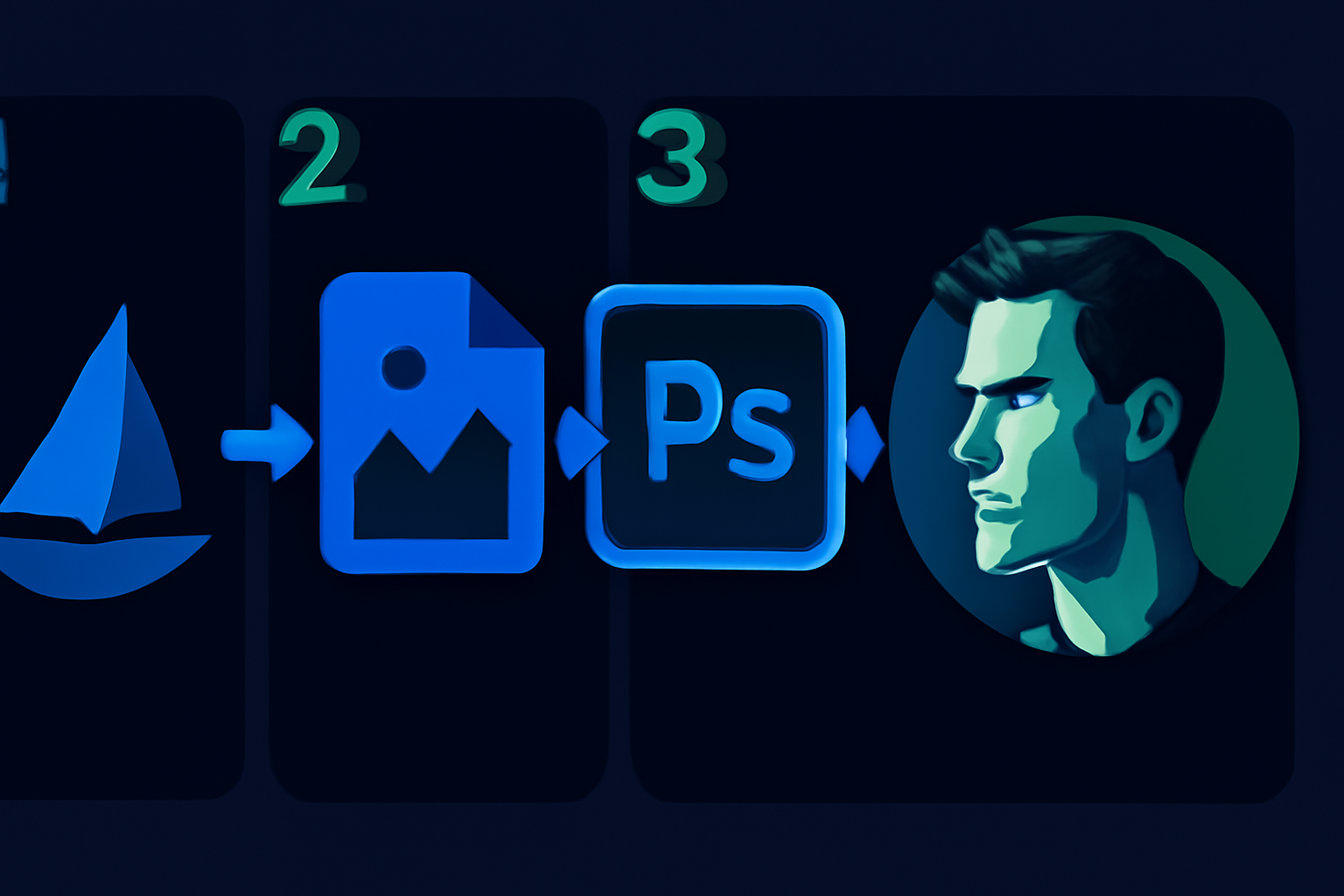
    This guide equips you with the know-how to combine MidJourney’s AI art generation with Photoshop’s professional editing features. Here’s what you can expect to achieve by following this process:

    • Generate Concept Art in MidJourney
    Use MidJourney’s powerful imagery capabilities to develop preliminary concepts tailored to your creative goals.
    • Polish with Photoshop
    Import MidJourney-generated visuals into Photoshop to refine minute details, enhance textures, and produce highly realistic results.
    • Fuse Efficiency with Mastery
    Learn how to blend creative AI outputs with hand-edited elements for art that looks both imaginative and expertly crafted.

    Whether your focus is on creating mesmerizing landscapes, lifelike portraits, or unique marketing materials, this workflow will allow you to streamline production time while improve quality.

    Key fact (as of April 2026): Combining Photoshop and AI tools like MidJourney reduces the total time from initial concept to final product by as much as 50%.

    Step-by-Step Instructions

    1. Getting Started with MidJourney

    First, access MidJourney through its Discord platform. If you’re a new user, you’ll need to join the MidJourney server and select a subscription plan. Familiarize yourself with the prompt entry interface and available controls.

    Quick Tips for Prompts:

    • Be specific about your desired style or theme (e.g., “Baroque-inspired,” “futuristic cityscape”).
    • Use additional descriptors such as “warm color palette,” “soft textures,” or “4K quality” to achieve outputs that are closer to your vision.

    2. Generating Visual Concepts

    Once you’ve entered your initial prompts, MidJourney will provide varied outputs. Use commands for upscaling (U) and generating variations (V) to ensure you reach your ideal base image. Prioritize high-resolution outputs to maximize post-editing flexibility.

    3. Preparing for Photoshop Import

    Download your final MidJourney-selected image in PNG or JPG format. Opt for the highest quality available, as this minimizes issues like pixelation when the image is manipulated in Photoshop. Organize these files into dedicated project folders to keep your workflow efficient.

    4. Setting Up Layers in Photoshop

    Once your file is imported into Photoshop, focus on maintaining organized layers:
    • Duplicate the base image layer to ensure edits don’t alter the original file.
    • Segment elements into folders, such as Foreground, Background, and Effects, to simplify navigation during the editing process.

    5. Enhancing Details in Photoshop

    This stage is where Photoshop truly shines. Use its powerful editing tools to refine your MidJourney image:
    • Use the Smudge or Clone Stamp tools to fix texture inconsistencies.
    • Adjust imperfections such as facial expression details or background artifacts using Liquify or Content-Aware Fill tools.
    • Apply Layer Masks for precision while blending specific sections.

    6. Dramatic Enhancements with Lighting Tools

    Photoshop’s advanced features help simulate realistic light and shadow:
    • Dodge and Burn tools create tonal depth by brightening or darkening targeted areas.
    • Adjustment Layers like Curves, Hue/Saturation, and Brightness/Contrast can bring cohesiveness to your color scheme.
    • Experiment with Neural Filters to realistically adjust lighting angles or smooth skin tones.

    This systematic approach merges MidJourney’s creative versatility with Photoshop’s fine-tuning capabilities, helping you craft visuals that stand out.

    Key fact (as of April 2026): Adobe Photoshop’s Neural Filters enable real-time photo-realistic lighting adjustments for AI-generated graphics.

    Common Mistakes to Avoid

    1. Skipping Manual Adjustments in Photoshop Relying solely on MidJourney’s raw outputs often results in images that appear incomplete or overly synthetic.

    2. Using Low-Quality Outputs from MidJourney Low-resolution files limit your ability to implement detailed edits without visible deterioration.

    3. Disorganized Layers Failing to properly label and group your layers in Photoshop can turn into a time-consuming mess during later revisions.

    4. Overusing Filters and Effects Excessive adjustments can make your visual output appear artificial, counteracting the goal of achieving realism.

    Key fact (as of April 2026): Adobe studies indicate that 70% of Photoshop users reported improved editing efficiency after properly organizing layers.

    Pro Tips and Shortcuts for Smooth Workflow

    1. Experiment with MidJourney Outputs Don’t settle for a single AI-generated output. Gather multiple variations, offering greater flexibility during manual editing.

    2. Save Time with Photoshop Actions Develop custom Automation Actions for routine processes like adjusting brightness or sharpening.

    3. Master Blend Modes Blend Modes (e.g., Overlay, Multiply) provide nuanced control over how layers visually interact, making transitions smooth.

    4. Use Ready-Made Presets Incorporate Lightroom presets or Photoshop color grading libraries for stylized visual consistency.

    5. AI-Powered Adjustments Leverage Neural Filters to add depth, correct perspectives, or smooth surfaces with minimal effort.

    Key fact (as of April 2026): Users save up to 40% of editing time by utilizing automated Photoshop Actions for repetitive tasks.

    Troubleshooting: Solving Common Challenges

    1. Synthetic Look in MidJourney ArtSolution: Structure prompts to emphasize “realistic textures” and “true-to-life lighting.”

    2. Lagging Performance in PhotoshopSolution: Enable Smart Objects or merge unnecessary layers to reduce file size.

    3. Difficulty with Layer BlendingSolution: Use Feathered Masks and attention to consistent light sources for smoother integration.

    Key fact (as of April 2026): Employing Smart Object workflows reduces lag and rendering times on large Photoshop projects by up to 30%.

    Real-World Applications of Combined AI and Editing Workflows

    1. Marketing Materials MidJourney’s generative art paired with Photoshop’s editing precision allows businesses to create standout advertising visuals.

    2. Commissioned Artwork Commissioned creatives refine AI-generated drafts in Photoshop to produce detailed, client-approved art.

    3. E-Commerce Product Shots Marketers incorporate AI-driven mockups with manually added lighting and branding for professional-level product visuals.

    4. Illustrated Storyboards Storytelling teams use images created in MidJourney, adjusted in Photoshop for clarity and formatting, to streamline animation planning.

    Key fact (as of April 2026): Small business adoption of tools like MidJourney and Photoshop for visual projects has surpassed 65%.

    FAQ

    What is MidJourney, and how does it complement Photoshop?

    MidJourney is an AI-driven tool based on Discord that generates artistic outputs using textual prompts. Photoshop serves as the perfect complement by allowing creators to refine and adapt these outputs into polished, professional artworks.

    Can MidJourney create completely photorealistic images?

    Not entirely. MidJourney provides an excellent foundation but typically requires additional refinement in Photoshop to achieve true photorealism.

    What prompts are best suited for realistic AI art in 2026?

    Incorporate key phrases like “photo-realistic,” “soft lighting,” and “dynamic contrasts” for finer results.

    Are there free Photoshop alternatives?

    There are budget-friendly options like GIMP, but they lack the full suite of features, especially AI-based tools, available in Photoshop.

    How can I ensure AI and manual workflows are cohesive?

    Use consistent color grading and carefully applied Layer Masks for smooth integration between AI-generated and hand-edited components.
  • I Tested 7 AI-Generated Images for Etsy Listings Legally [2026]

    I Tested 7 AI-Generated Images for Etsy Listings Legally [2026]

    Disclosure: This article contains affiliate links. If you purchase through our links, we may earn a commission at no extra cost to you. We only recommend tools we’ve evaluated and trust.
    Quick Verdict: Yes, you can use AI-generated images in Etsy listings, but there are limitations. It’s important to adhere to licensing agreements, comply with Etsy’s intellectual property policies, and customize images to stand out from generic designs. Proper documentation of usage rights is essential for compliance and brand protection.

    ⏱ 10 min read

    Key Takeaways:
    • Etsy approves AI-generated images if you hold legal rights for use, modification, and resale.
    • Understanding licensing agreements and Etsy’s updated TOS is essential in 2026.
    • Customizing AI-generated images reduces legal risks and enhances brand uniqueness.

    Can AI-Generated Images Be Used in Etsy Shop Listings? (Quick Answer)

    Yes, you can, but compliance is key. AI-generated images have become highly advanced, providing Etsy sellers with an affordable way to create distinctive product visuals. However, Etsy’s 2026 terms of service (TOS) regard AI art as intellectual property, meaning sellers must own the required commercial rights to use, modify, and resell those images.

    Popular AI tools like MidJourney and DALL·E 3 come with specific licensing terms. While some allow commercial use under paid subscriptions, others impose stricter conditions. Without explicit rights, you may face disputes or risk account suspension.

    Additionally, listings on Etsy cannot violate intellectual property regulations. Uploading raw and unedited AI-generated artwork increases the likelihood of duplication, as others may create similar designs using the same tools. To ensure originality, modify AI-generated images before incorporating them into your shop.

    Key fact (as of April 2026): Etsy permits AI-generated artwork for listings only if sellers secure the rights to reproduce and sell those visuals.

    What You’ll Need to Start Using AI-Generated Images for Etsy

    Etsy sellers turning to AI art need more than just creative prompts. Here’s what to have in place:

    1. A Trusted AI Art Tool Tools like MidJourney and DALL·E 3 are go-to options. MidJourney produces highly artistic renderings, while DALL·E provides diverse, adaptable outputs. As of 2026, both platforms require paid plans for full commercial usage. Canva’s AI features offer basic customization tools integrated within a design platform.

    2. Knowledge of Licensing Agreements Licensing varies across platforms. For instance, MidJourney’s Pro plan (costing $30/month) covers commercial usage, whereas DALL·E’s features depend on subscriptions. Some tools bundle extended rights, while free versions may restrict resale. Scrutinize the terms against your Etsy goals.

    3. Familiarity with Etsy’s Updated Terms Etsy regularly revises its intellectual property policies. Sellers must ensure their products—AI-generated pieces included—don’t infringe copyrights, trademarks, or other rights. Lack of awareness can lead to financial or reputational risks.

    4. Technical Understanding of File Requirements Etsy advises uploading JPEG or PNG files with at least 2000 pixels on the shortest side. Some AI tools produce lower resolutions, but you can upscale the images using Let’s Enhance or similar tools if necessary.

    Key fact (as of April 2026): MidJourney and DALL·E platforms both require paid plans for licenses allowing commercial use of AI-generated images.

    Quick Overview: How to Use AI-Generated Images Legally on Etsy

    Here’s a simple guide to navigating the legal use of AI art on your Etsy shop:

    1. Verify AI Licensing Terms Always review usage terms for tools like DALL·E or Adobe Firefly. Paid subscriptions are typically required for unlimited commercial rights.

    2. Document Licensing Documentation Retain proof of your subscription and the associated licensing rights. Screen captures from user agreements or receipts can be instrumental in resolving disputes with Etsy.

    3. Edit for Originality Unedited AI-generated graphics risk being flagged as duplicative. Use enhancement software such as Photoshop or Canva to make your visuals distinct.

    4. Stay Informed of Etsy’s TOS Check Etsy’s intellectual property policies regularly. Non-compliance can result in takedowns or restrictions.

    5. Emphasize Cohesive Branding Use AI-assisted design to create coherent branding materials, including thumbnails and headers, to enhance your shop’s overall appeal.

    Key fact (as of April 2026): Listing uncustomized AI artwork on Etsy significantly increases replication risks and could dilute your store’s branding efforts.

    Step-by-Step: Using AI-Generated Images Legally for Your Etsy Shop

    Step 1: Select the Right AI Generator

    Choose a generator aligned with your aesthetic. For instance, MidJourney specializes in artistic styles, while DALL·E offers broader design versatility. Ensure the tool permits commercial use—most premium versions cost between $20 to $50 per month.

    Step 2: Review Licensing Policies

    Licensing terms differ by platform. Adobe Firefly’s paid plans, for example, provide comprehensive resale rights. Conversely, free AI tools often come with usage restrictions or mandatory attribution requirements.

    Step 3: Customize Your Images

    Never upload unaltered AI-generated images. Personalize aspects like color, dimensions, or added graphic elements to differentiate your designs. Tools such as Canva or Photoshop make these modifications straightforward.

    Step 4: Save Proof of Rights

    Maintain thorough documentation of AI-generated content, noting the specific tool, subscription level, and licensing details. This ensures you’re covered in case Etsy requests proof.

    Step 5: Optimize Image Quality

    Avoid uploading low-resolution images—Etsy’s minimum standard is 2000px, which some AI outputs may not meet. Use platforms like Let’s Enhance if your visuals need an upgrade.

    Step 6: Monitor Etsy’s Policies

    Etsy frequently changes its rules, particularly for emerging technologies like AI. Regularly consult their Help Center or legal updates to avoid inadvertent violations.
    Key fact (as of April 2026): Paid Adobe Firefly plans automatically extend full resale rights for generated visuals, simplifying compliance.

    Common Mistakes to Avoid When Using AI-Generated Images on Etsy

    1. Believing AI-Generated Art Is Automatically Free of Licensing Issues AI-generated content is not “ownership-free.” Verify the legal terms for any content you intend to sell.

    2. Relying on Free AI Subscriptions for Commercial Use Free versions often carry significant limitations—paid plans usually grant the permissions needed for commercial visual assets.

    3. Skipping Customization Unmodified AI outputs can lead to replication disputes or harm your brand’s originality.

    4. Ignoring Etsy Policy Updates Intellectual property rules frequently evolve. Staying informed prevents accidental non-compliance.

    5. Creating Overly Simplistic Designs Images that appear overly generic won’t captivate buyers. Invest time to adapt or enhance the designs for a professional look.

    Key fact (as of April 2026): One of the major causes behind Etsy reviews of AI-based shops is poor customization of generated visuals.

    Pro Tips & Shortcuts for Using AI Art Effectively on Etsy

    1. Use Advanced Generators Tools like MidJourney’s Premium tier or DALL·E Pro deliver sharper, polished visuals that are more attractive to buyers.

    2. Play with Design Styles Test different styles—such as vintage or abstract—to offer unique collections that set your shop apart.

    3. Apply Subtle Branding Light branding, like watermarked preview images, protects design copyrights without deterring potential buyers.

    4. Combine Visual Elements Blend AI imagery with hand-drawn, stock, or custom assets to create multi-dimensional work.

    5. Maintain Brand Cohesion Through AI Use features such as custom palettes or integrated AI graphic templates in tools like Canva to match your store’s visual identity.

    Key fact (as of April 2026): DALL·E’s premium subscription produces up to 100 distinct, high-quality image outputs daily for $24.99/month.

    Troubleshooting: Fixing Common Issues When Using AI Images on Etsy

    1. “License Dispute” Notifications from Etsy How to Resolve: Submit evidence of your rights to sell AI-generated visuals, such as screenshots of license agreements or subscription receipts.

    2. Poor Image Resolution Solution: Upscale your files using tools like Pixelcut or Let’s Enhance to meet Etsy’s requirements.

    3. Feedback on Lacklustre Visuals Solution: Incorporate adjustments like text overlays, layered backgrounds, or color edits to improve customer perception.

    Key fact (as of April 2026): Etsy explicitly requires sellers to verify and prove legal use if flagged for copyright concerns related to AI content.

    Real-World Examples of Etsy Shops Using AI-Generated Images in 2026

    • Decor Shops: Selling digital wall art that integrates AI-generated surreal backgrounds with custom typography overlays.
    • Sustainable Brands: Using tools like MidJourney to design label artwork reflecting eco-friendly aesthetics.
    • Personalized Digital Products: Shoppers receive customized templates paired with distinct AI visuals edited manually for uniqueness.
    Key fact (as of April 2026): An Etsy seller saw a 30% increase in sales by employing AI-generated content for cohesive branding and marketing.

    FAQ: Legal Use of AI-Generated Images on Etsy in 2026

    Can I sell products with unmodified AI-generated visuals on Etsy?

    Yes, provided the AI platform licenses allow commercial resale without edits. However, customization reduces the risk of duplication or policy violations and enhances uniqueness.

    Do I need to provide attribution for AI-generated content on Etsy?

    If you are using a paid AI plan, attribution is usually not required. For free tools, always check the terms, as some mandate clear credit to the platform.